This is Part 3 of 4 in the GitHub Projects in 2026 series.
← Previous: Part 2: Why Projects and Issues Feel Weird (and Why It Makes Sense) · Next: Part 4: Taming a Messy Backlog with Issue Types →
Shameless plug: Already running your team in GitHub Projects? Honest Cheetah adds test management and "when will it be done?" forecasting right inside GitHub, using the data you already have. It measures the system, not the people.
▶ Watch this video on YouTube (opens in a new tab)
The last two posts were pretty heavy on theory. Where GitHub Projects came from, why issues live inside repos, and why the whole thing feels a little weird at first. Now it's time to actually build something.
In this post, I'm going to create a brand new GitHub project and fill it up with work. Then I'll walk you through the one thing that trips up almost everybody: draft issues versus real issues. The difference matters a lot more than you'd think.
TL;DR
- Create a project from the Team planning template. Add draft issues fast, prioritize by dragging rows.
- The backlog view and the board view are two lenses on the same items. Drag a card between columns and the status changes.
- Draft issues live only in the project. Quick capture. No issue number, no repo, nobody else has to see them.
- Real issues live in a repository. That's what gives them a number, labels, assignees, and the ability to be closed from a pull request.
- If you don't already have a home for your issues, create a repo dedicated to the project's issues and name it after the project.
- The grid is a surprisingly good editor. Change one cell, drag the handle down, done.
Create the Project
I'm starting in my demo organization, benday-demo-2026. Across the top you've got the usual row of tabs: Overview, Repositories, Projects, Packages. (Packages is private NuGet and npm feeds and that kind of thing.) The one we care about is Projects.
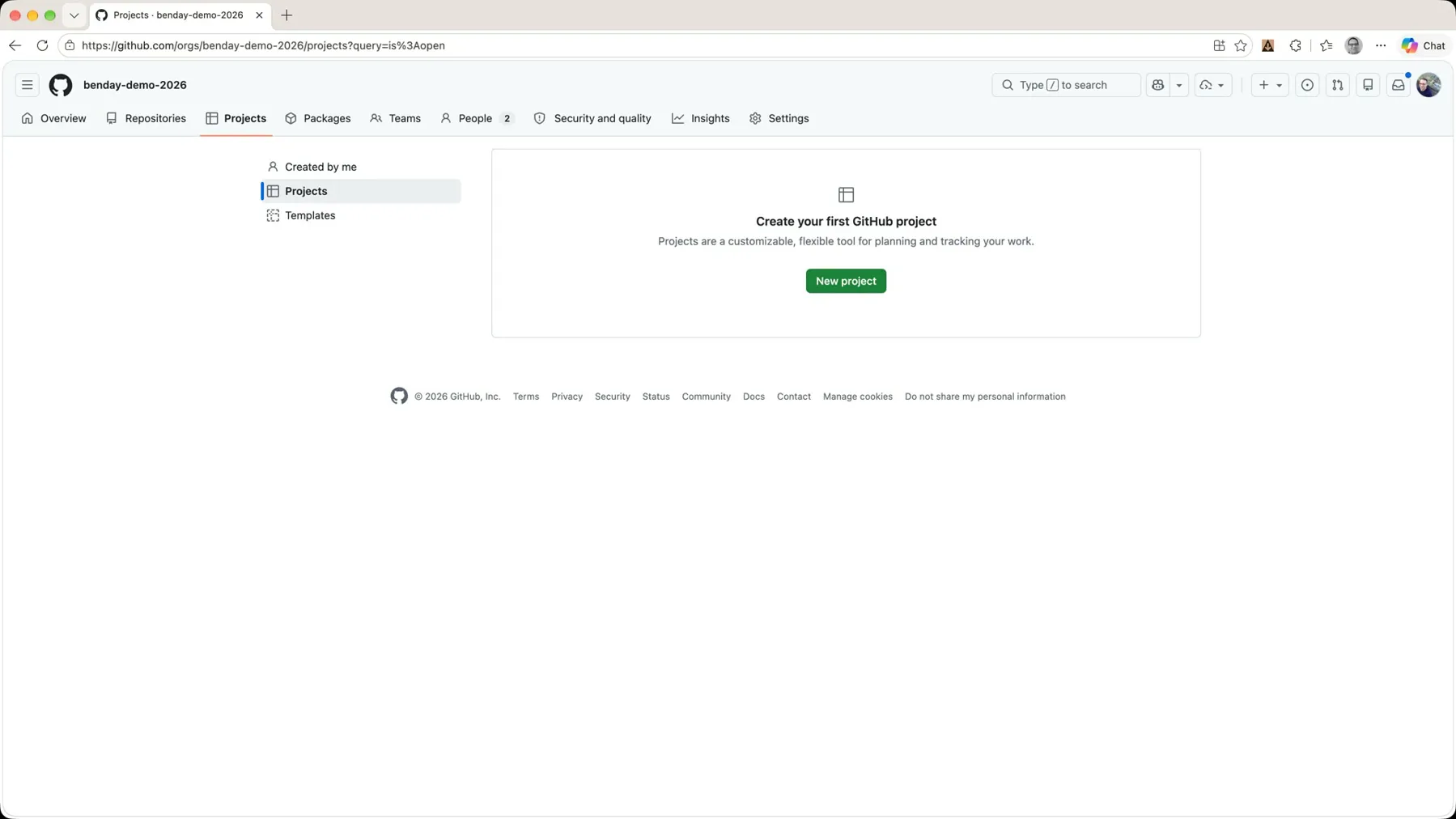 *A brand new org. No projects, no repositories. Click 'New project'.*
This is a brand new org, so there aren't any projects yet. Click New project and you get a bunch of template options: Team planning, Kanban, Feature release, Bug tracker, and a few more.
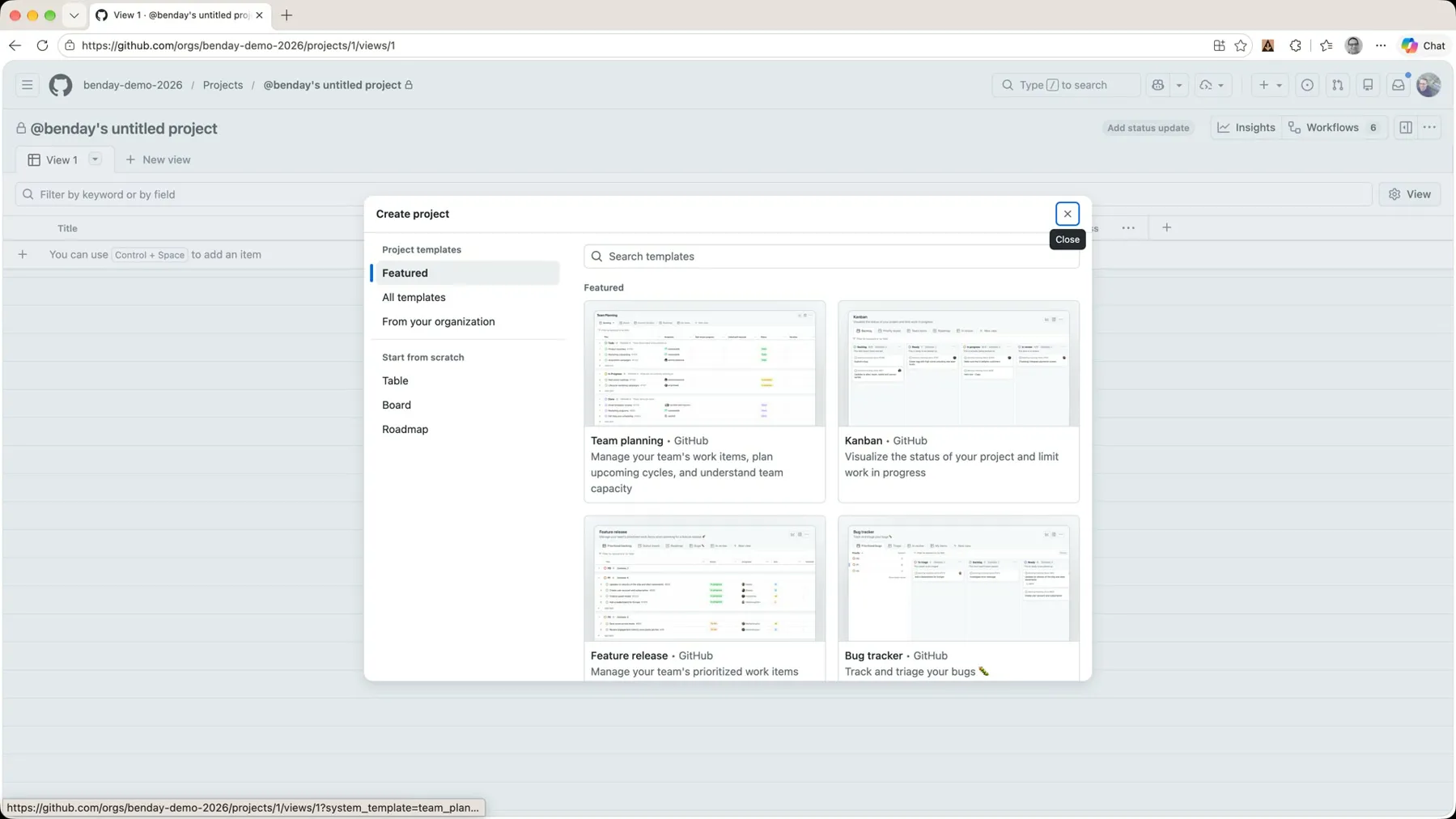 *The project templates. Pick 'Team planning' for anything agile-ish.*
I'm going to assume for this demo that we're doing something that's kind of agile, kind of Scrum-ish. So I'm starting with Team planning.
The first thing it asks for is a name. I'll call it projects-2026. There's also a checkbox that says Import items from repository. We don't have a repository yet (brand new org, remember), so I'm unchecking that for now. Then click Create project.
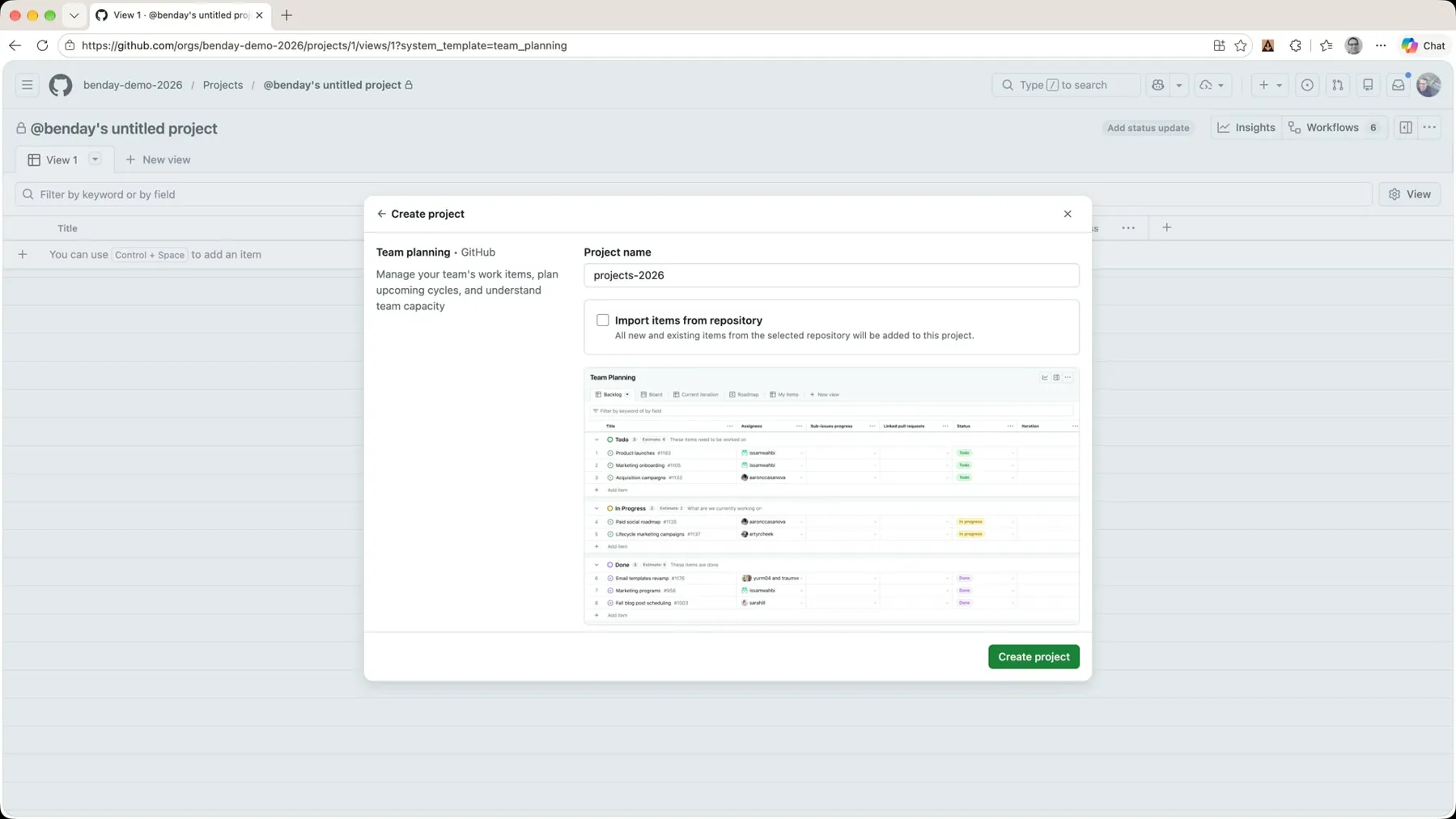 *Give it a name, skip the import, click 'Create project'.*
One slightly weird thing: right after the project gets created, the breadcrumb at the top says @benday's untitled project instead of the name I gave it. Hit refresh and it sorts itself out.
Add Draft Issues
Once the project is created, you're on the Backlog view and it's empty. You can hit Ctrl+Space or just click the add-item row and start typing. I'll type Requirement A.
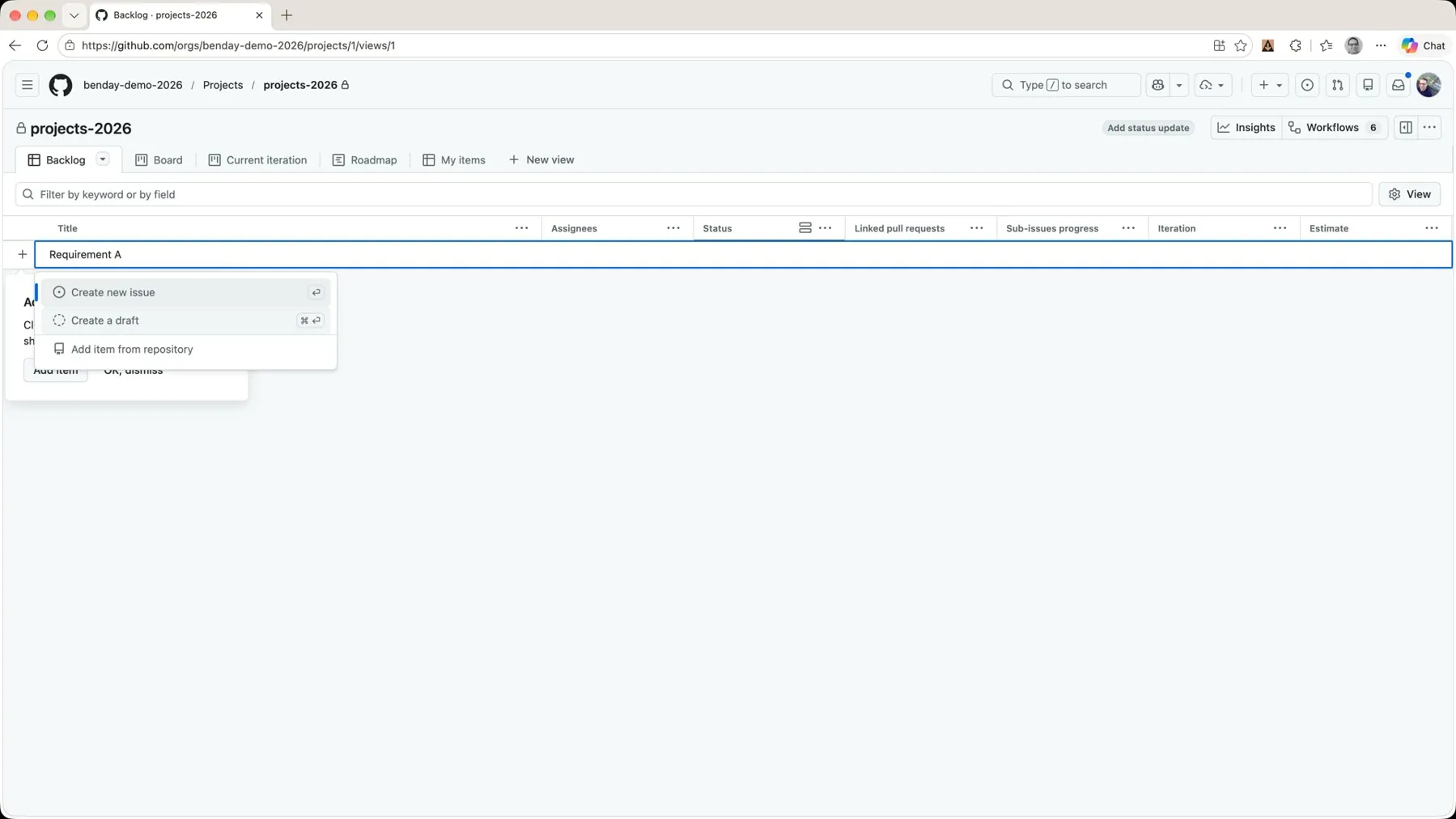 *Two options: create a real issue, or create a draft. We're starting with drafts.*
You get two options: Create new issue or Create a draft. Draft issue is what I'm going to do first. I'll explain what that actually is in a little bit.
Pro tip: sometimes when you go a little fast, the new row doesn't show up right away. Give it a half second. I added Requirement B, C, and D the same way.
Prioritize the Backlog
Now we've got four items. If you want to prioritize, hover over a row until you get the little hand icon, then drag and drop. I moved Requirement B down a spot and dragged Requirement D all the way to the top.
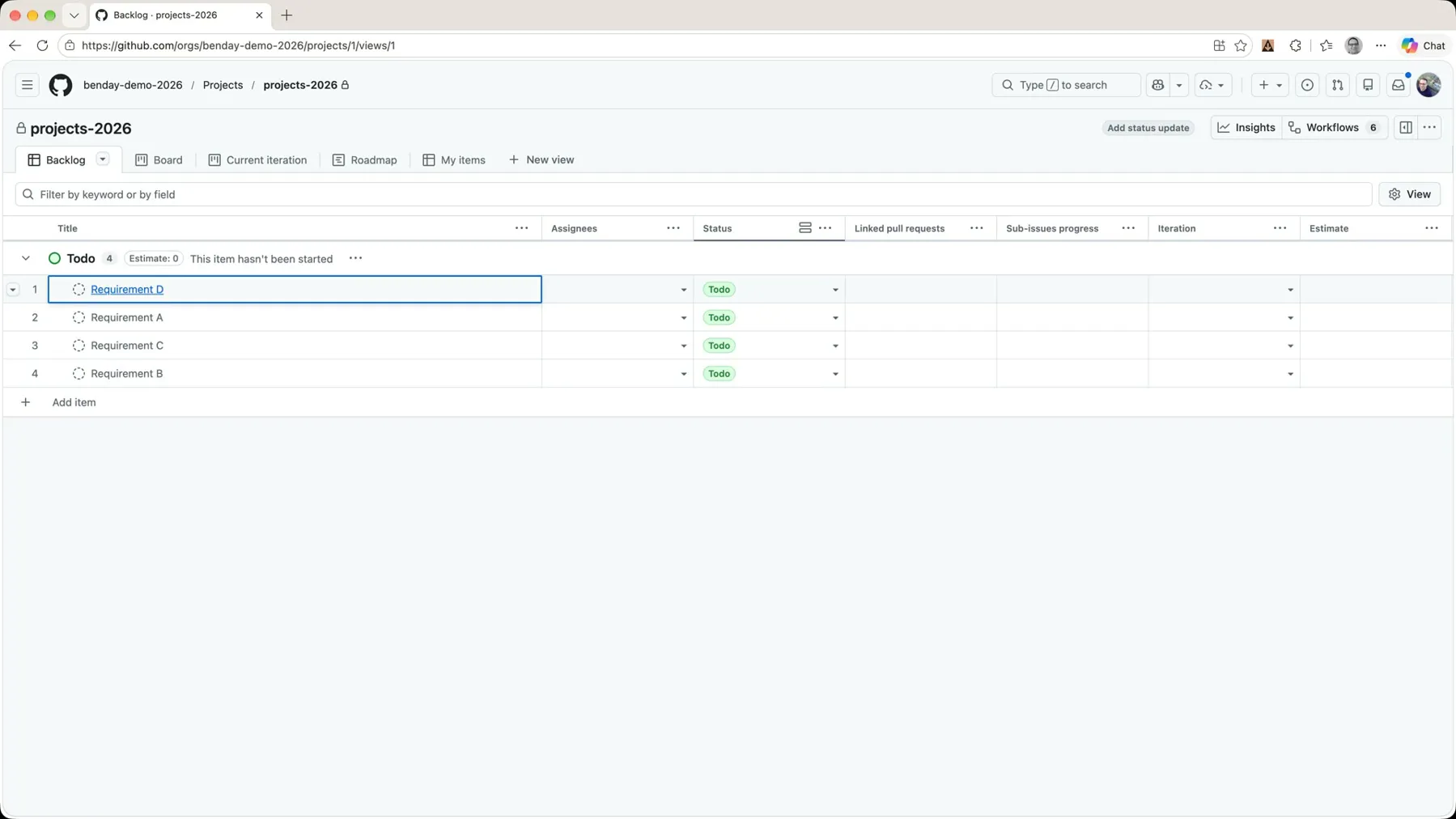 *Drag rows to reorder. Requirement D is now the top priority.*
That's it. That's prioritization. One list, in order. (That's question number one from the All-New Three Questions, by the way.)
Edit a Draft Issue
Click on Requirement D and it opens an editor panel on the right.
Here's the first of two spots where the UI isn't obvious. You'd think you could click on No description provided and just start typing. You can't. You've got to click Edit first.
The description field takes markdown. I started with a pound sign for a title, a sentence of description, and then an Acceptance Criteria heading with a bulleted list. I don't have the markdown for lists memorized, so I just clicked the unordered list button in the toolbar. Flip over to Preview and the markdown turns into something nice and pretty.
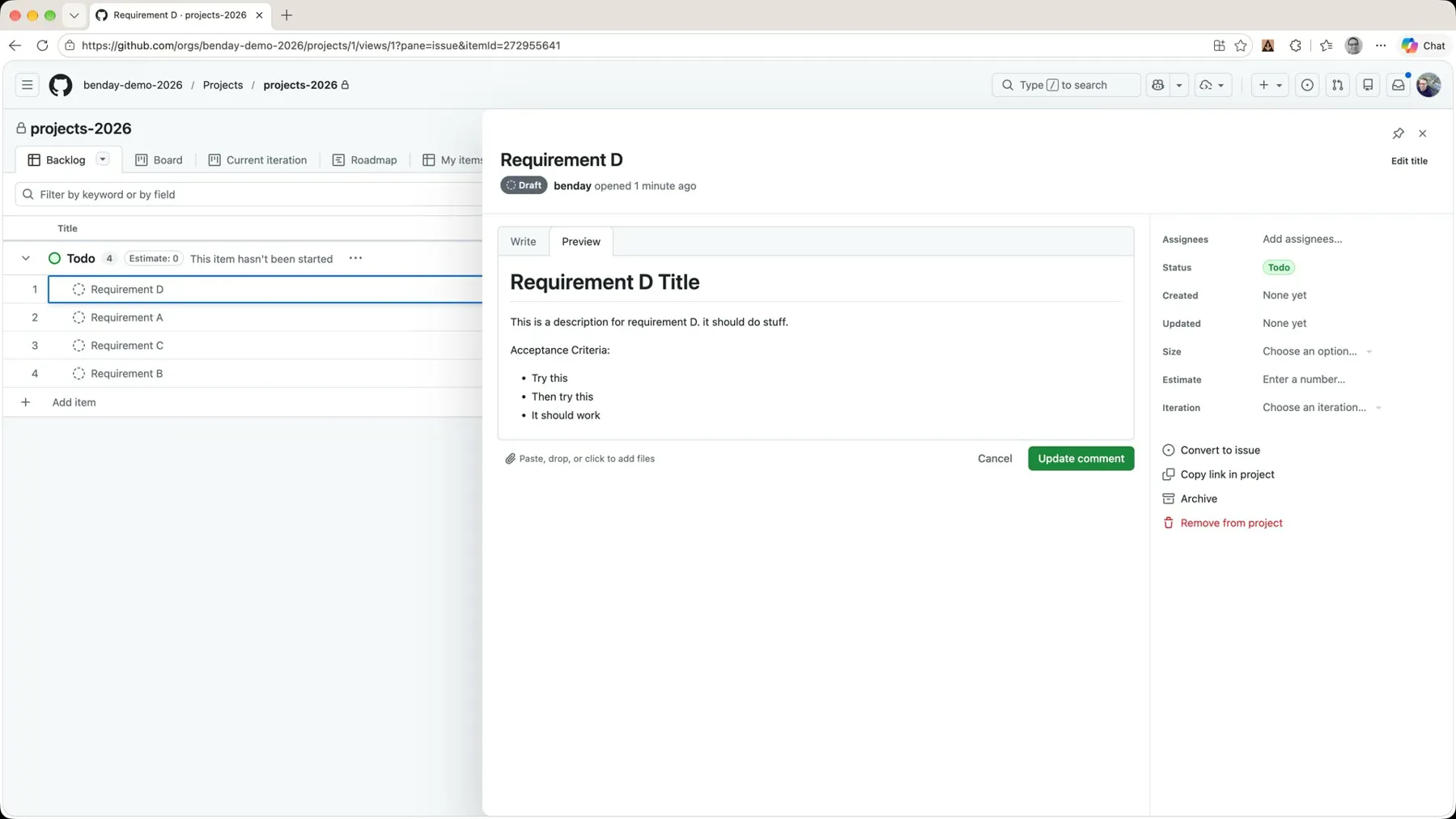 *A draft issue with a markdown description and acceptance criteria. 'Try this. Then try this. It should work.' Not my finest acceptance criteria, but good enough.*
Click Update comment to save it.
Here's the second not-obvious spot. If you want to change the title, you can't just click on it either. There's an Edit title button up in the top right corner of the panel. I changed the title to Requirement D 123, clicked Save, and it updated in the list behind the panel.
Backlog and Board Views
Across the top of the project are the views. Right now we're on Backlog, which is a product-backlog-style view: a prioritized list.
Next to it is Board, which shows the same items by status: Todo, In progress, Done. Since everything we've created is sitting in Todo, everything's in the Todo column.
If I want to say that Requirement D 123 is in progress, I just drag the card over to the In progress column. Open the card back up and the Status field on the right says In progress.
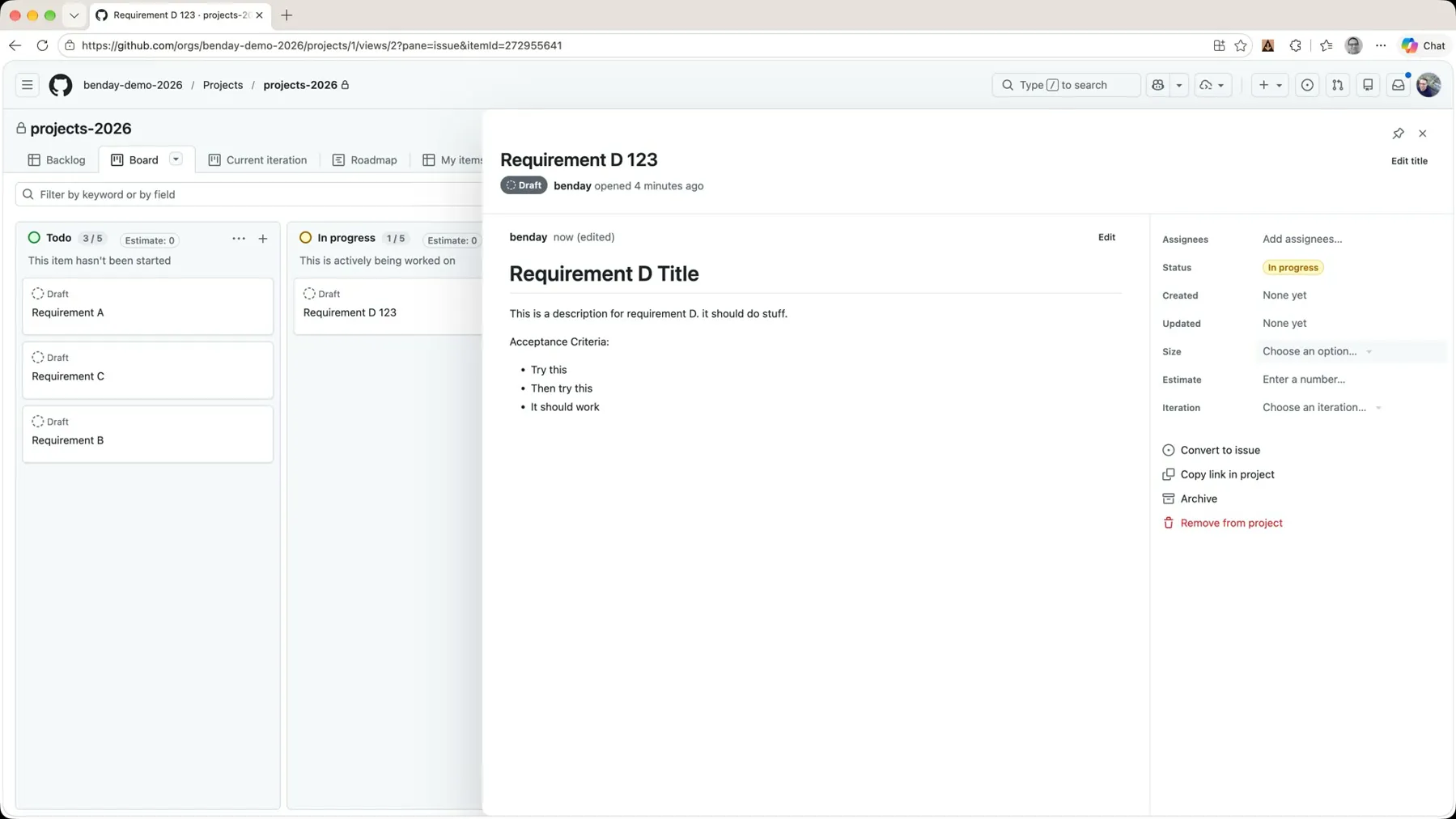 *Drag a card between columns and the status changes. Same items, different lens.*
Fields on a Draft Issue
While that panel is open, let's look at the handful of fields that come with the Team planning template.
- Assignees. One or more people. I'm leaving it at nobody for now.
- Size. This is what's commonly referred to as t-shirt sizing: XS, S, M, L, XL.
- Estimate. A number.
- Iteration. Which sprint it's scheduled into: current iteration, iteration 2, iteration 3, and so on.
Now, those of you who have been watching my channel for a while know I'm big into flow metrics. So here's my honest take on Size: I'm pretty much never going to use it. You can't do math with t-shirt sizes. You can't even sort them alphabetically and end up with a useful result. So yeah. I don't use this field.
Estimate I'd use if I were doing story points or estimating in hours. Story points typically go in a Fibonacci sequence, so I put a 13 on this one. And I'll be honest, I'm not super-duper excited about story point estimation either. If you want to hear what I do instead, check out my videos on flow metrics and Monte Carlo forecasting.
I'm leaving Iteration alone for now. We'll get to sprint planning in a later post.
Then I dragged Requirement D 123 back to Todo for the sake of the demo and went back to the Backlog view.
Edit in the Grid and Bulk Changes
Back on the backlog, the Estimate column shows the 13 for Requirement D. I plugged in 8, 5, and 3 for the others, right in the grid.
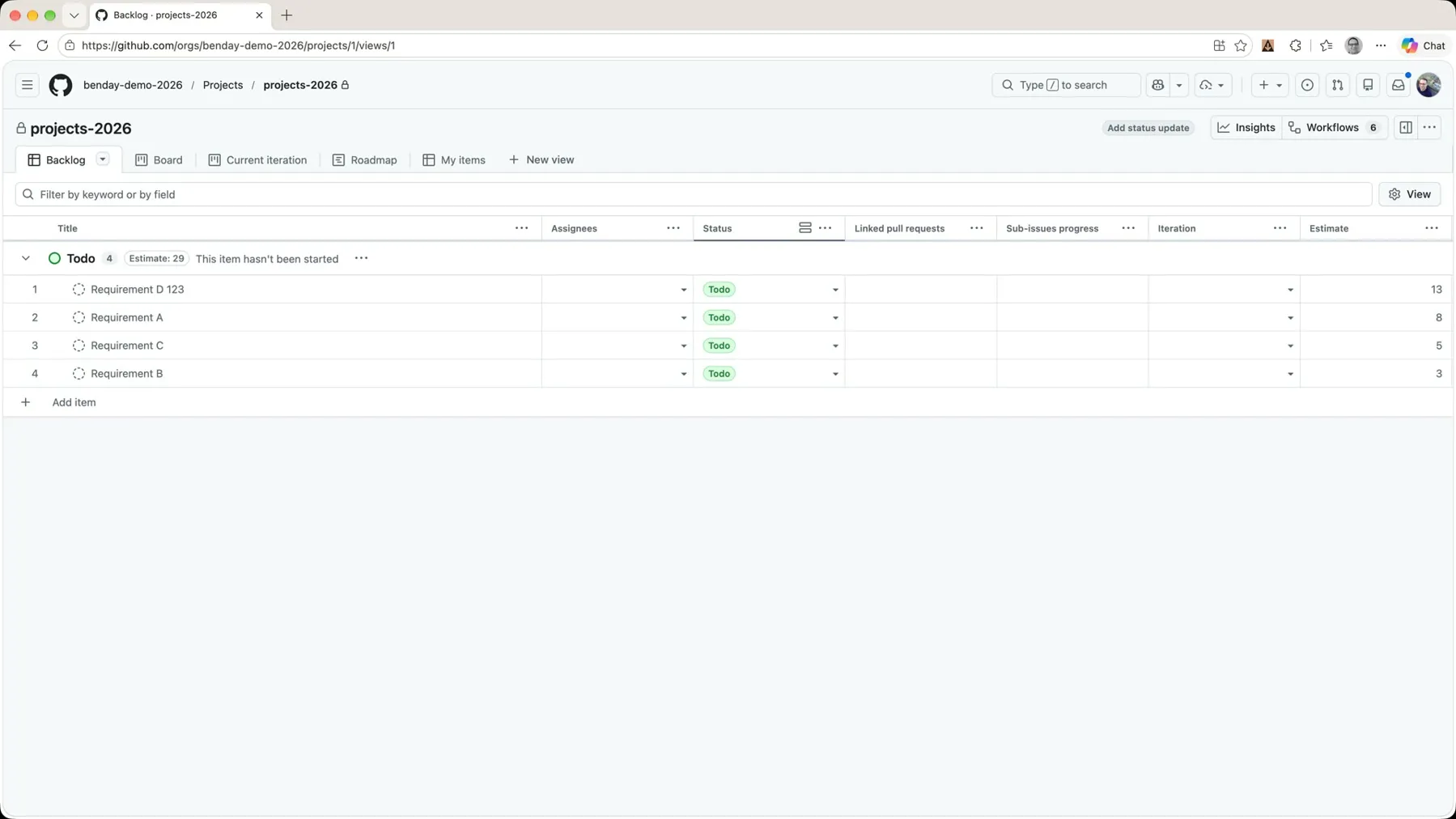 *The grid is a surprisingly good editor.*
From this grid, you can do a certain amount of editing, which is actually really nice. There's also the ability to do bulk changes. Change one item's Status to In progress, then grab the little handle in the corner of the cell and drag it down. It changes all of those to In progress.
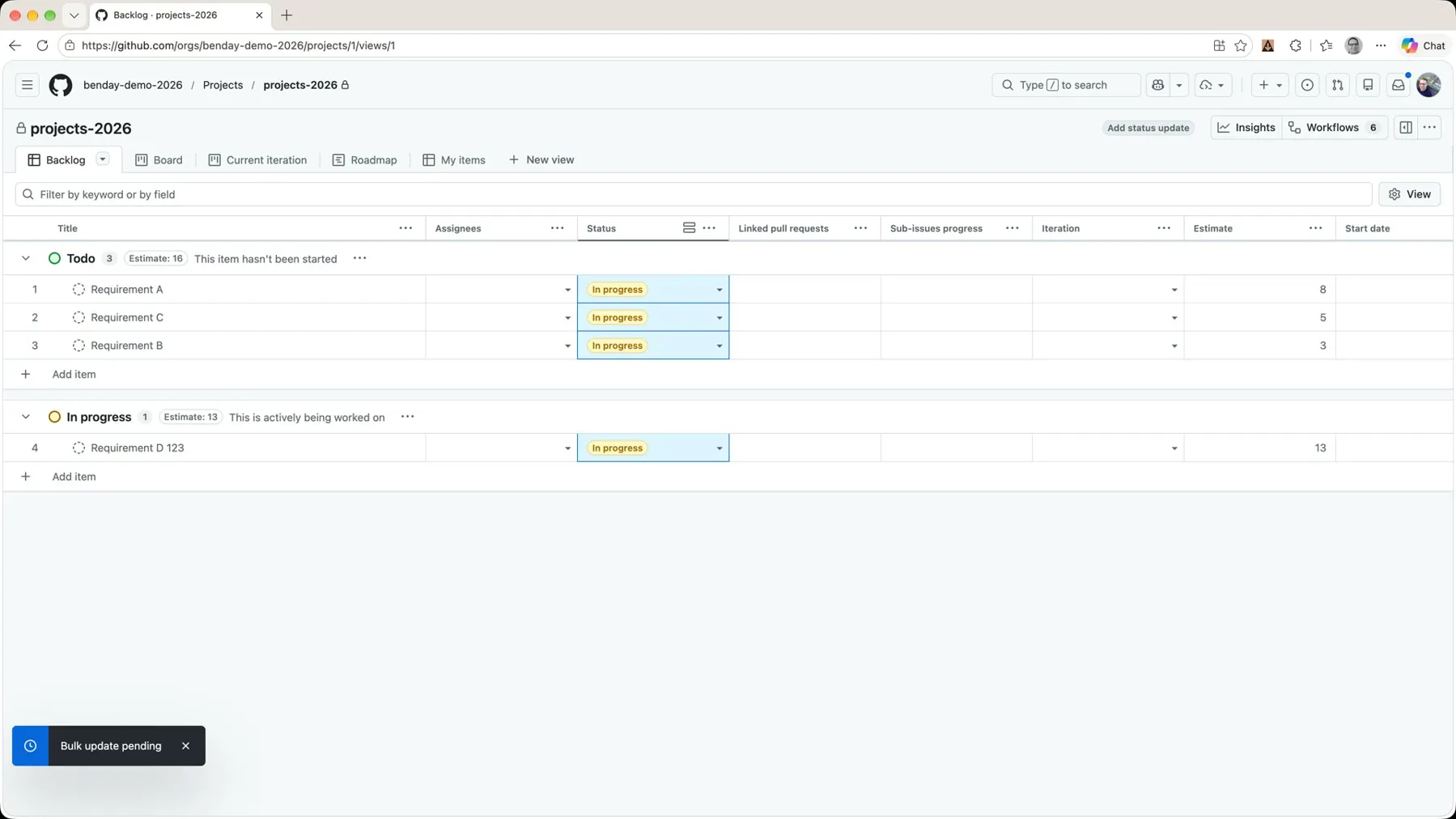 *Change one cell, drag the handle down, and the rest follow.*
Flip over to the Board view and they're all in the In progress column. I changed them back to Todo one by one (you can also bulk select) because I want a clean backlog for the next part.
Draft Issues Versus Real Issues
Ok. Let's stop and talk about these draft issues for a second, because I'll be honest with you, they confused me for a while.
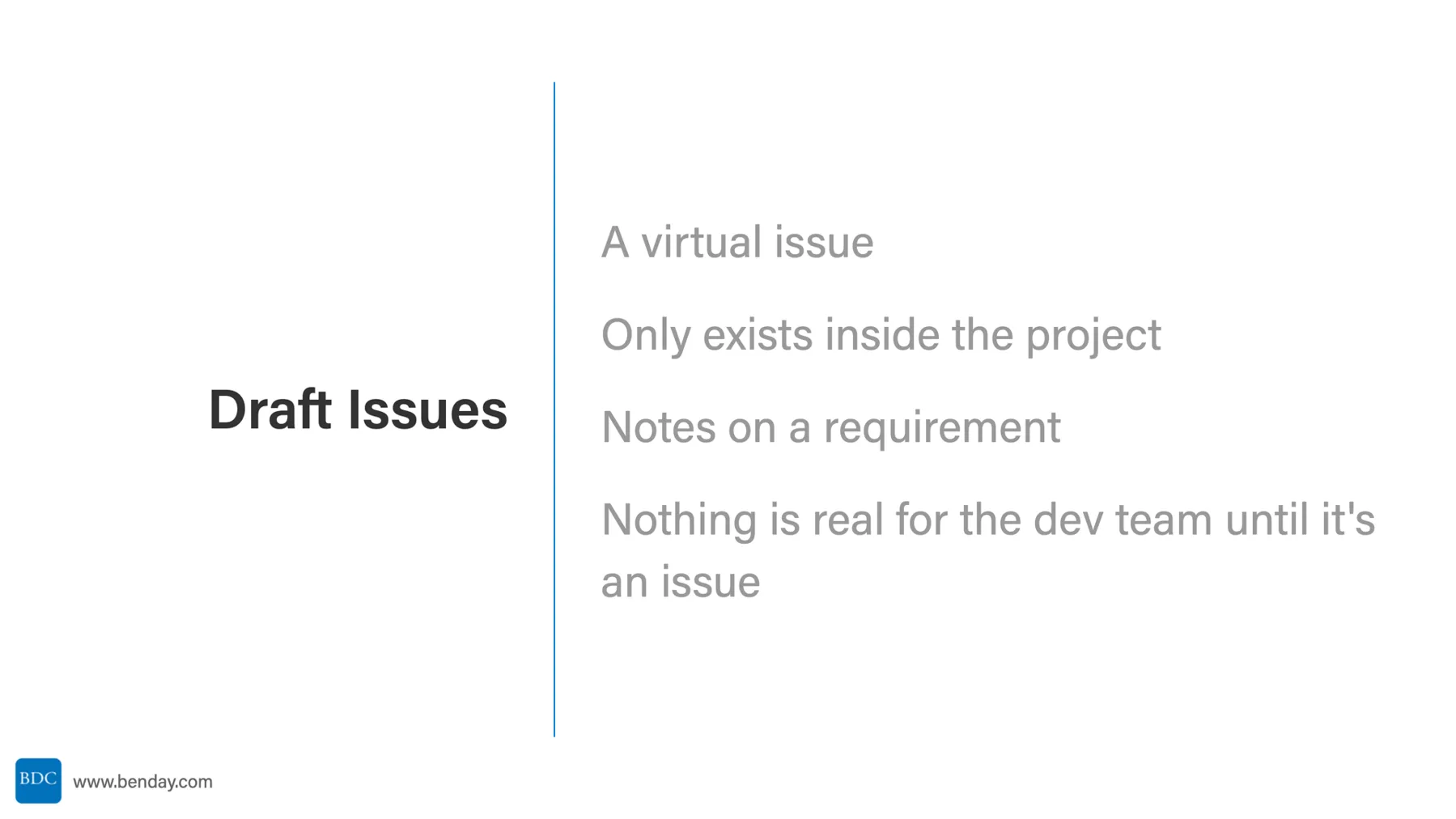
Naming. I suspect the GitHub team wrestled with what to call these things, and the least-worst name they could come up with was "draft issue."
Stored in the project. As you'll see in a minute, there's an actual storage decision required for a full-on issue: it has to live in a repository. If you're just trying to capture ideas or requirements, that storage decision gets in your way. Draft issues live only in the project, so there's no decision to make.
Notes can be messy. If you're a project manager or a product owner or some role like that, a lot of the time you need to capture ideas for requirements. The early stages of those ideas can be a complete mess that isn't even close to actionable. Draft issues give you a place to capture the mess without getting in anyone's way.
Convert later. Now I know what you're thinking: why would I want an issue that isn't a real issue? If you follow the model all the way through, your developers and testers only ever care about full-blown issues. I think of draft issues as a feature that lets me think about the requirements without worrying about where to store them. When I've decided they're real and we're actually going to implement the idea, I convert them and share them with the world.
Here's the whole thing on one slide:
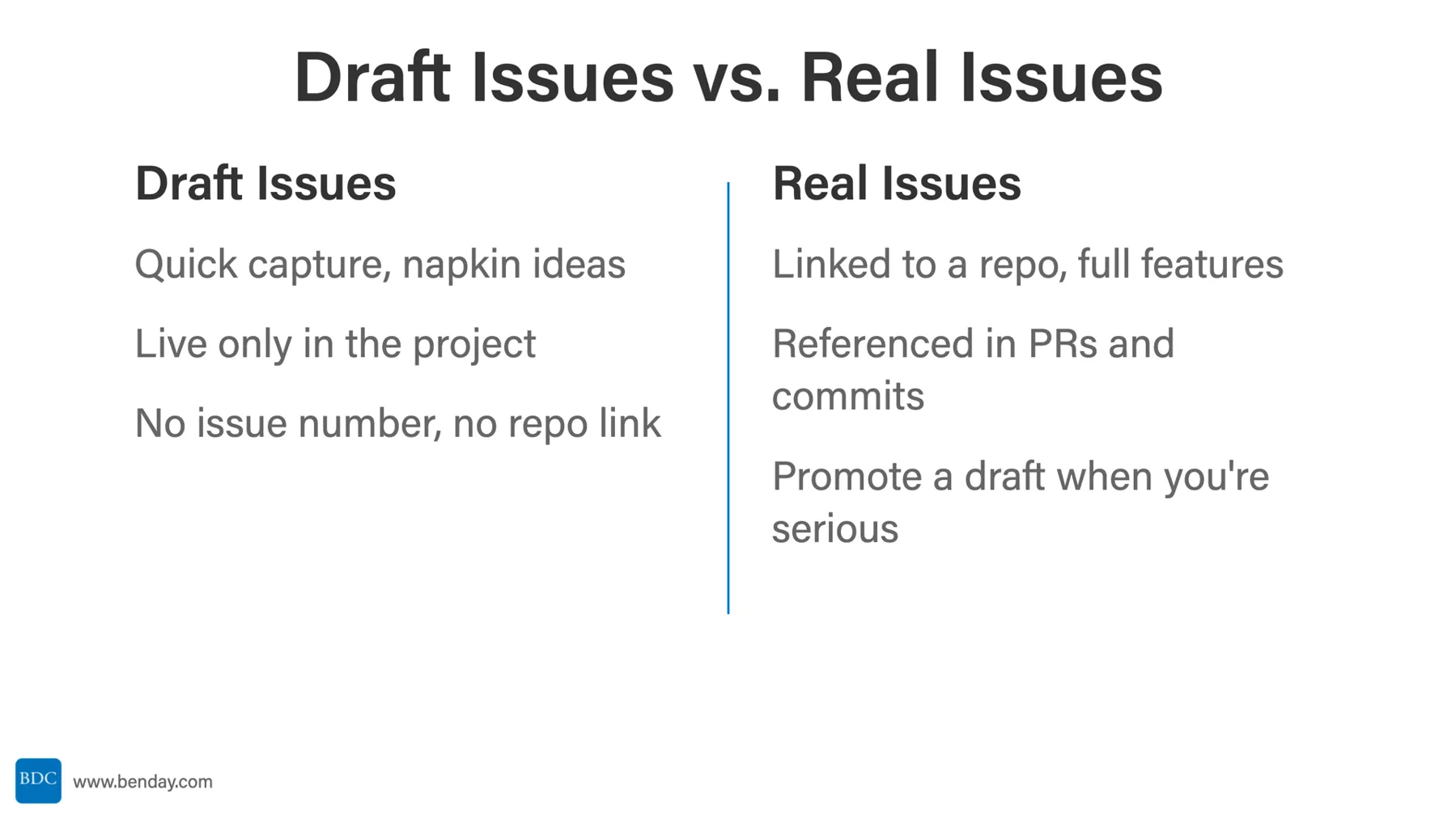
| Draft issues | Real issues |
|---|---|
| Quick capture, napkin ideas | Linked to a repo, full features |
| Live only in the project | Issue number, labels, assignees, the whole thing |
| No issue number, no repo link | Referenced from PRs and commits with #123 |
| Lightweight placeholders | Closed automatically when a pull request merges |
So the workflow is simple. Capture fast as drafts while you're brainstorming, then promote them to real issues when you're serious. And that's exactly what we're about to do.
Back on the board, all of these are still draft issues. A lot of the fields on them don't really make sense until they're real, full-on issues. So let's convert some.
Create a Repository
When you decide you actually want to tackle an item, or send it out to a team to be implemented, click the little row-actions dropdown (the three dots) and choose Convert to issue.
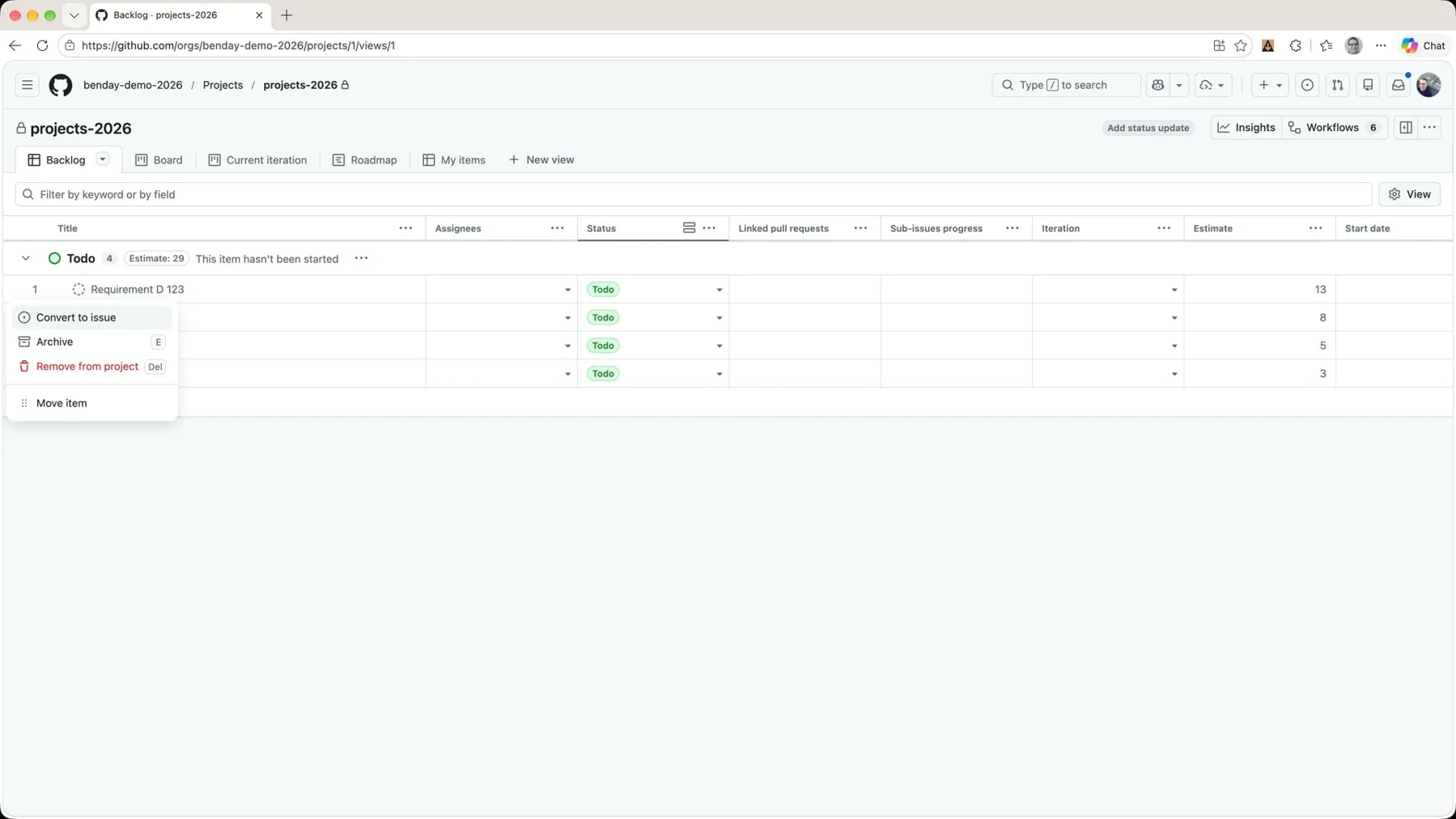 *The row actions menu. 'Convert to issue' is the one we want.*
The first thing it asks is which repository do you want to put it in? Because, as we talked about in Part 2, issues get stored inside of a repository. And we don't have any repositories.
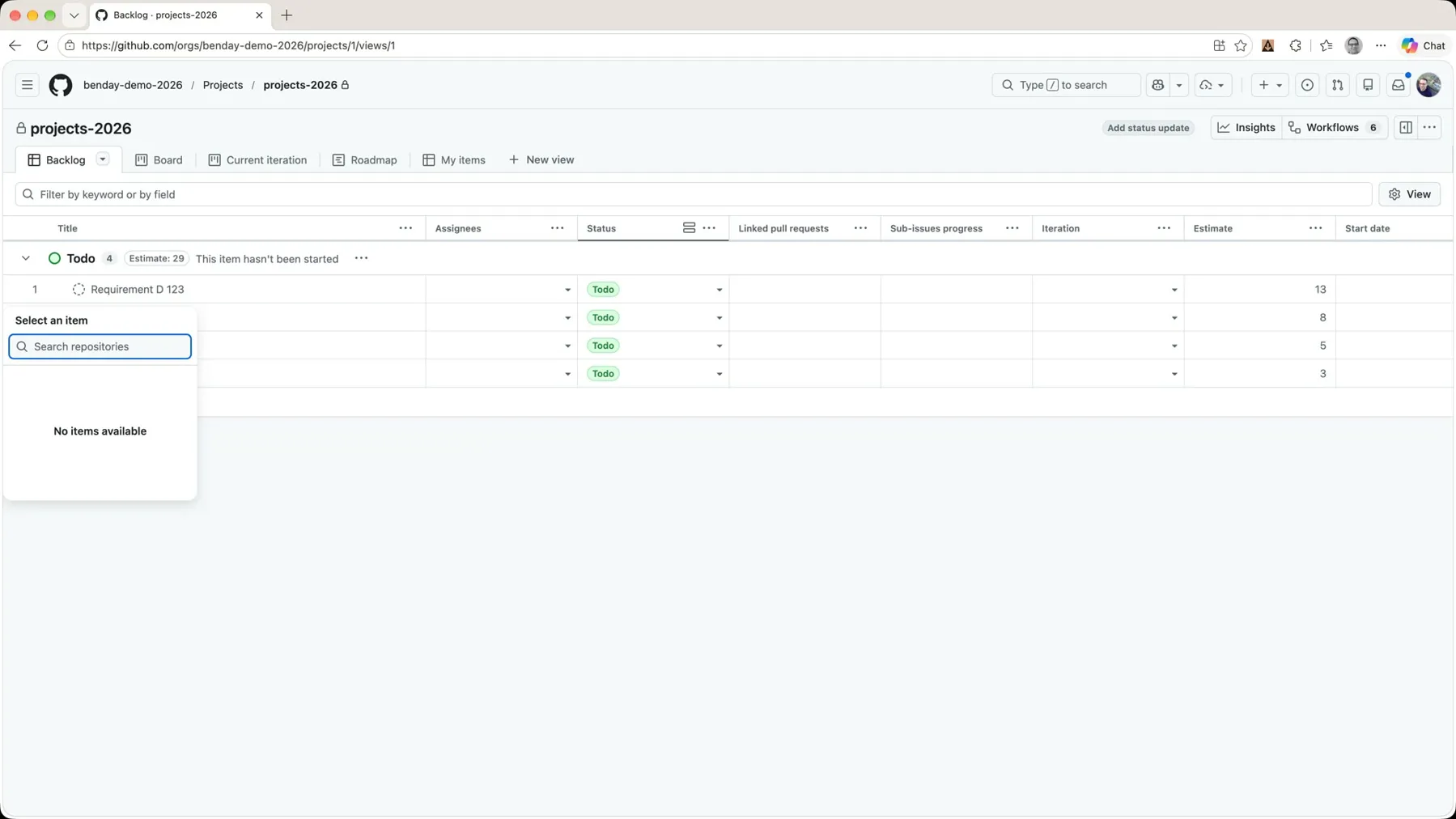 *No repositories, no place to put a real issue. Time to go create one.*
So let's go create one. Back on the org's main page, in a new tab, go to Repositories and click New repository.
Here's my recommendation. If you don't already have someplace established to store your issues, create a repo that's dedicated just to the issues for that project, and give it the same name as the project. In this case the project is projects-2026, so the repo is projects-2026. This makes it nice and easy to know how things are related, and it answers the "why not just pick one repo?" question from Part 2: yes, pick one repo for the issues. The code can still live wherever the code lives.
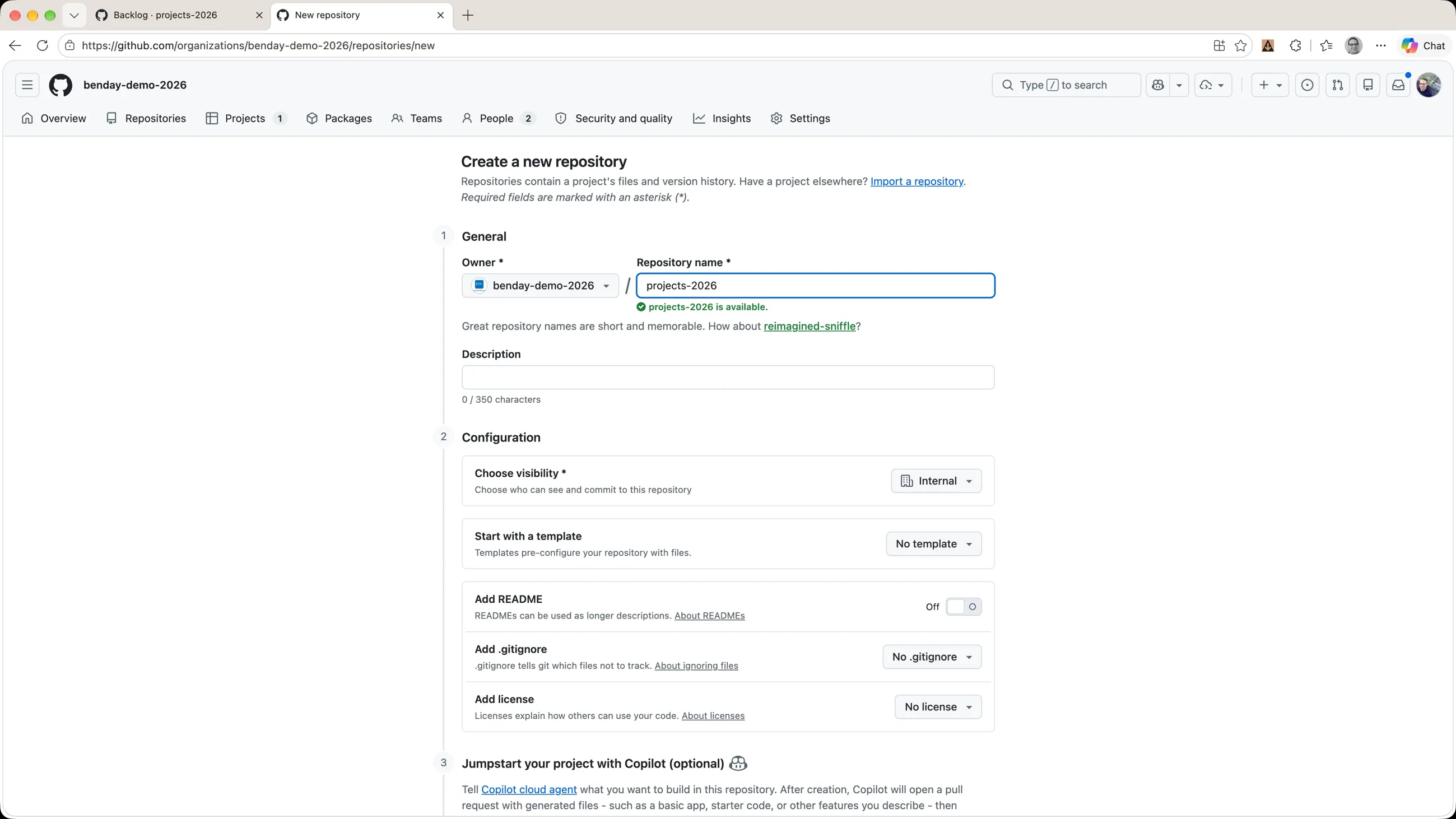 *A repository dedicated to the project's issues, named after the project.*
Click Create repository.
Convert Drafts to Real Issues
Pop back over to the project tab and try that again. Row actions, Convert to issue, and now projects-2026 shows up in the picker.
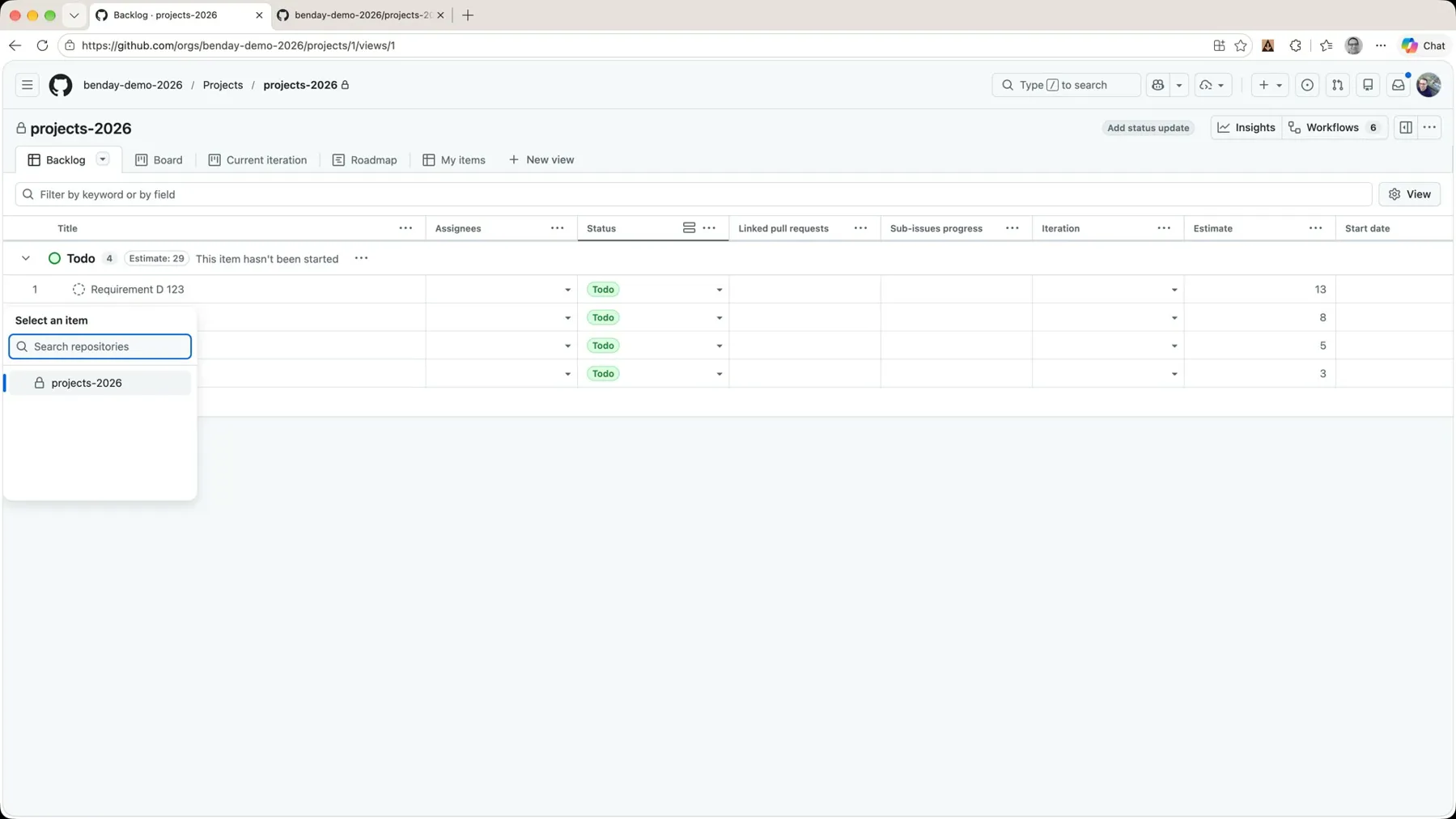 *Now there's a repository to convert into.*
Pick it, and the draft gets converted to a real issue. I did the same thing with Requirement A. You can see the icon change in the list, and the items get a number now. That's the issue number.
Go back over to the repository tab and click on Issues, and there they are. Click into one and you get the full issue page: description, comments, labels, assignees, and over on the right, a Projects section that says this issue is in projects-2026 with a status of Todo.
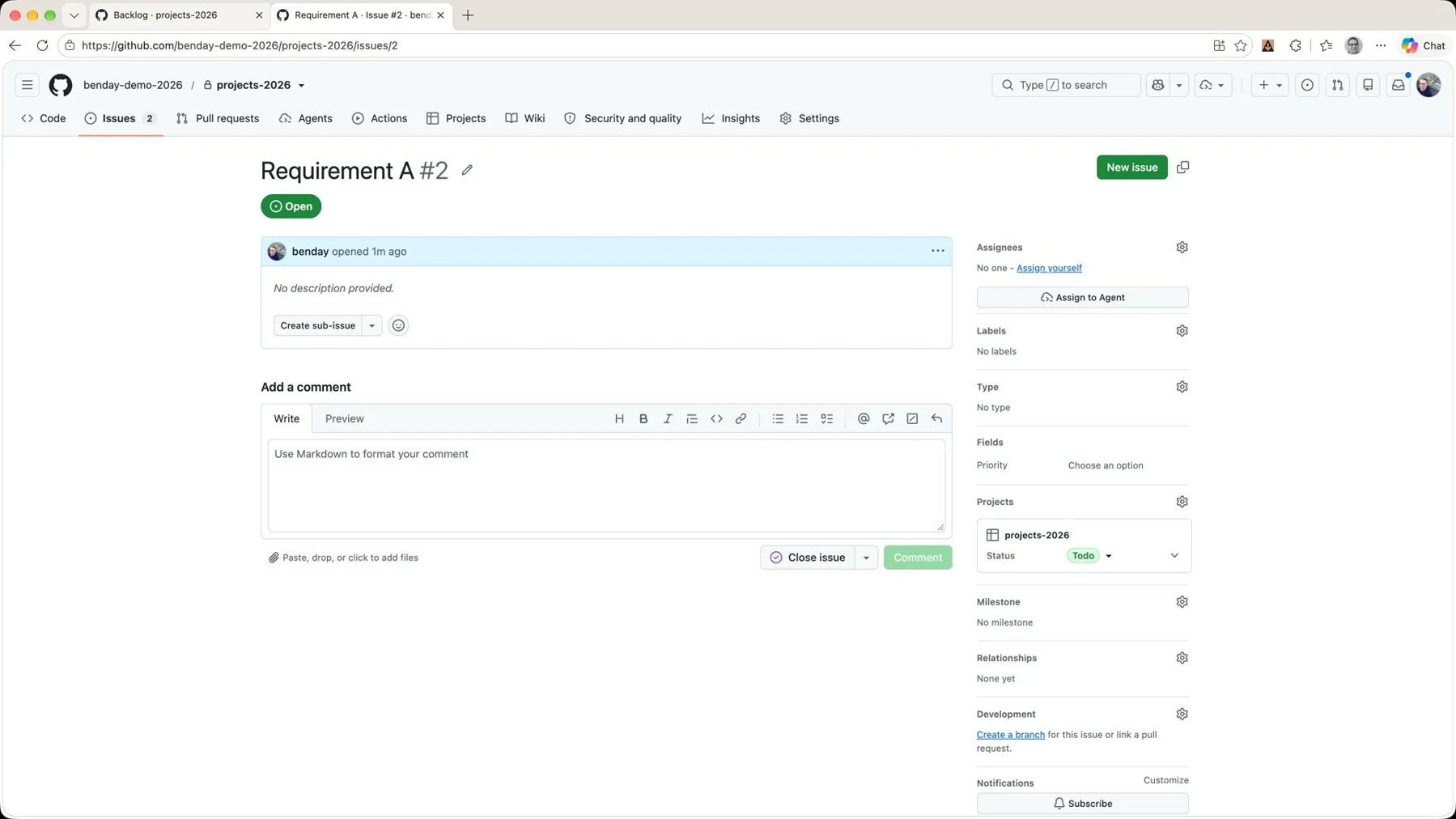 *Requirement A is now issue #2 in the repo. The project is just a lens on it.*
That's the "lens, not a container" idea from Part 2, live. The issue lives in the repo. The project is how you look at it.
Default Repository
One more thing you might want to do is set the default repository for the project. That's where new issues get created when you convert a draft, or when you create a new item that isn't marked as a draft.
It's a setting on the project. Click the three-dots menu at the top right of the project, choose Settings, and there's a Default repository dropdown. I picked projects-2026 and clicked Save changes.
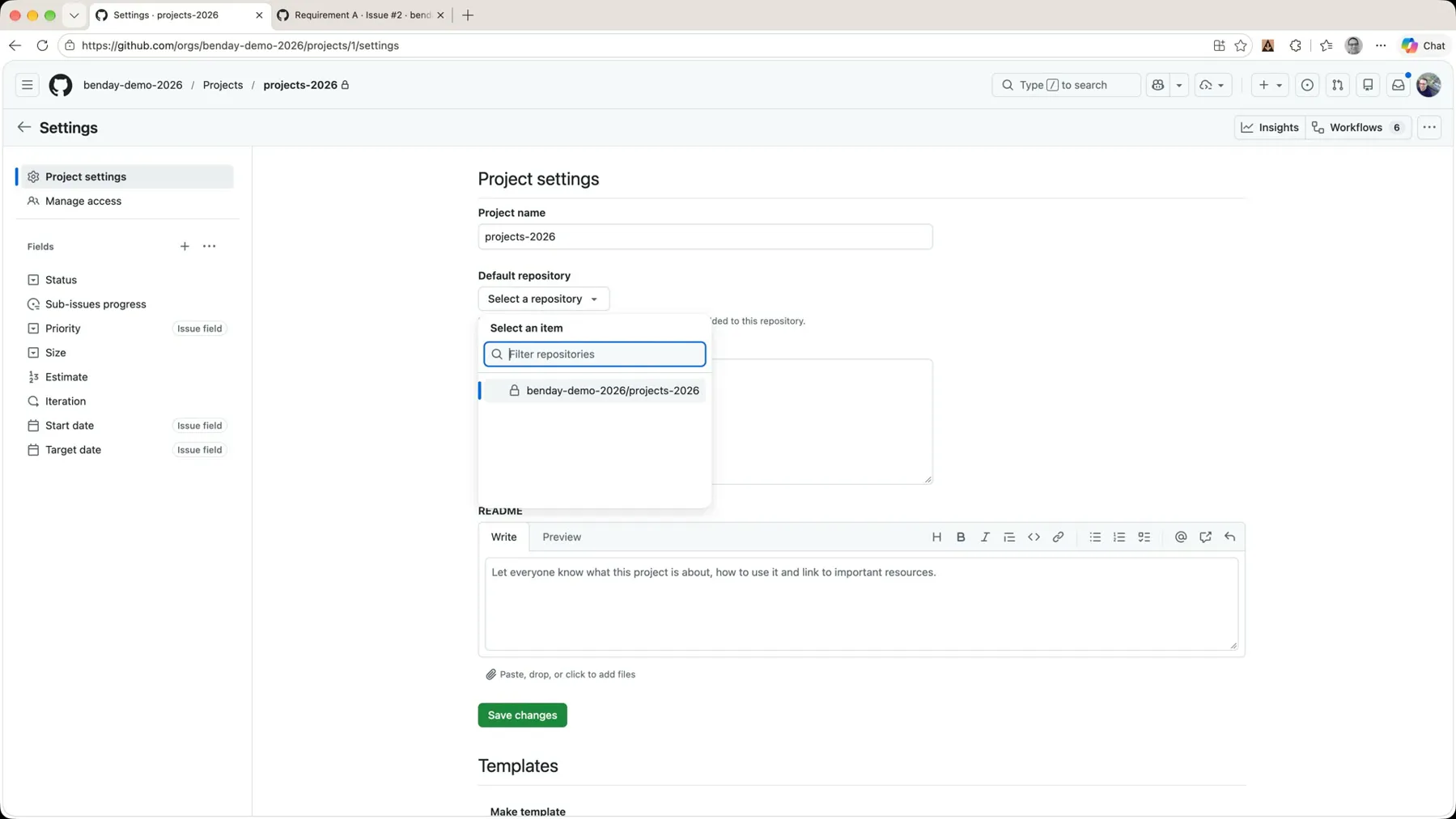 *Set a default repository so you don't have to go hunting every time.*
Full disclosure: when I went back and converted Requirement C right after that, it still asked me which repository. I'm honestly not sure the default took, and since there's only one repository in this org, it isn't a particularly great demo of that setting anyway. Set it, and keep an eye on it.
Recap
So we've just gone and created a bunch of real issues in a repository. They started off as draft issues. We did a little bit of backlog ordering by dragging things around, we did some status changes, and I showed you the board view. And that's the basics of creating a GitHub project, creating some draft issues, and turning them into regular issues.
The two things I'd like you to remember:
- Drafts are for thinking. Real issues are for doing. Capture fast as drafts, promote when you're serious.
- Give your issues a home. A repo dedicated to the project's issues, named after the project.
Shameless Plug
I built a product for GitHub called Honest Cheetah. It's got the tools to answer the important questions like "when will it be done?", plus AI-assisted project management and project coaching, QA testing tools, and the ability to import your work items and test cases from Azure DevOps. Give it a try and let me know what you think.
Next Up: Part 4
Right now our backlog is four items, and they're all called "Requirement." That's not what a real backlog looks like. A real backlog is a pile: features, bugs, and chores all mixed together. In Part 4, we load up a much messier backlog and sort it out with issue types.
-Ben
-- Looking for help adopting GitHub Projects for your team or your company? Need an assist getting going with GitHub Actions for automated builds and releases? Want to move your stuff over to GitHub from another service? We can help. Drop us a line at info@benday.com.
GitHub Projects in 2026: The Full Series
- Part 1: It Can Do Anything. That's the Problem.
- Part 2: Why Projects and Issues Feel Weird (and Why It Makes Sense)
- Part 3: Your First Project, From Draft Issues to Real Issues (you are here)
- Part 4: Taming a Messy Backlog with Issue Types
Related: