I spent an afternoon locked out of my own Azure DevOps Server 2022 instance. I was a domain admin, a Team Foundation Administrator, a member of Project Collection Administrators, and my SID matched perfectly in the database. According to every diagnostic I could run, I should have had access. Azure DevOps disagreed.
The fix turned out to be detaching and reattaching the Team Project Collection. I've been working with TFS and Azure DevOps Server for over 20 years and I've never seen this before. Let me walk you through the rabbit hole.
The Symptom
I fired up my demo lab after a few weeks away and tried to browse to https://demo-azdo.demo.local. Instead of my dashboard, I got a 401 — "benday@demo.local is not authorized to access this resource."
This is a single-box setup. Azure DevOps Server 2022, SQL Server, IIS, domain controller — all running on Hyper-V VMs in my home lab. I'm the only user. I'm the admin of everything.
Red Herring #1: SSL Certificate Errors
The Windows event log was full of Schannel errors about an untrusted certificate. The SSL_Self_Signed_Fallback certificate — SQL Server's auto-generated in-memory TLS cert — was getting rejected by IIS when the Azure DevOps app tier tried to connect to SQL Server.
I spent way too long on this. I tried creating a proper self-signed cert and assigning it to SQL Server. That broke SQL Server because of private key permission issues. Turns out New-SelfSignedCertificate in PowerShell creates CNG keys by default, and older SQL Server versions need legacy CSP keys. Even using the -Provider "Microsoft RSA SChannel Cryptographic Provider" flag didn't help — PowerShell ignored it and created a CNG key anyway.
After fighting with certificate permissions across three different approaches (PowerShell Set-Acl, icacls with account names, icacls with service SIDs), I gave up and cleared the certificate assignment from the registry:
Set-ItemProperty -Path "HKLM:\SOFTWARE\Microsoft\Microsoft SQL Server\MSSQL17.MSSQLSERVER\MSSQLServer\SuperSocketNetLib" `
    -Name "Certificate" -Value ""
SQL Server went back to its in-memory self-signed cert, the Schannel warnings continued, and the 401 persisted. The certificate was never the problem.
Lesson learned: Schannel warnings about SQL Server's SSL_Self_Signed_Fallback certificate are almost always benign. Azure DevOps uses TrustServerCertificate=True in its connection strings, so the app tier connects to SQL just fine even when Schannel complains. Don't chase these unless you have actual SQL connectivity failures.
Red Herring #2 (Sort Of): Missing Kerberos Configuration
While troubleshooting, I noticed that Edge was prompting me for credentials instead of passing them automatically. This turned out to be three separate issues, all of which were real problems worth fixing — but none of them caused the 401.
Missing HTTP SPNs. Azure DevOps needs HTTP Service Principal Names registered for Kerberos authentication to work. My app pool runs as NetworkService, so the SPNs needed to be on the computer account:
setspn -S HTTP/demo-azdo demo-azdo$
setspn -S HTTP/demo-azdo.demo.local demo-azdo$
Edge authentication policy. Chromium-based Edge doesn't use Internet Explorer security zones. Because demo-azdo.demo.local has dots in the hostname, Edge classifies it as an Internet site and refuses to send credentials automatically. You have to explicitly allowlist it:
New-ItemProperty -Path "HKLM:\SOFTWARE\Policies\Microsoft\Edge" `
    -Name "AuthServerAllowlist" `
    -Value "*.demo.local" `
    -PropertyType String -Force
In a real environment, you'd push this through Group Policy under Computer Configuration → Administrative Templates → Microsoft Edge → HTTP authentication → Auth server allowlist.
Loopback check. When browsing from the server itself, Windows blocks NTLM authentication to the machine's own hostname. The fix is adding the hostname to the BackConnectionHostNames list:
New-ItemProperty -Path "HKLM:\SYSTEM\CurrentControlSet\Control\Lsa\MSV1_0" `
    -Name "BackConnectionHostNames" `
    -Value @("demo-azdo.demo.local", "demo-azdo") `
    -PropertyType MultiString -Force
After all three fixes, Edge stopped prompting for credentials. But when it passed my credentials automatically, Azure DevOps still returned the 401. Authentication was working. Authorization was not.
Down the Identity Rabbit Hole
The 401 error referenced a GUID — 8f41e0e3-b5f3-41d8-b489-518277e5cb3c — that didn't match any identity in the Azure DevOps Configuration database. That felt like a smoking gun. An orphaned identity? A corrupted SID mapping?
I dug into the SQL databases. In the Configuration database (AzureDevOps_Configuration), the tbl_Identity table had my correct identity with the right SID. In the Collection database (AzureDevOps_DefaultCollection), the tbl_IdentityMap table mapped that mystery GUID as a localId to my correct masterId in the Configuration database. The ADObjects table showed my account with the correct domain, SamAccountName, DisplayName, SID, and fDeleted = 0.
Everything was mapped correctly.
I checked the ADObjectMemberships table. My SID was listed as a member of the Project Collection Administrators group. I even checked tbl_SecurityAccessControlEntry for explicit deny permissions — nothing.
Every single table in the database said I should have access.
The Fix: Detach and Reattach
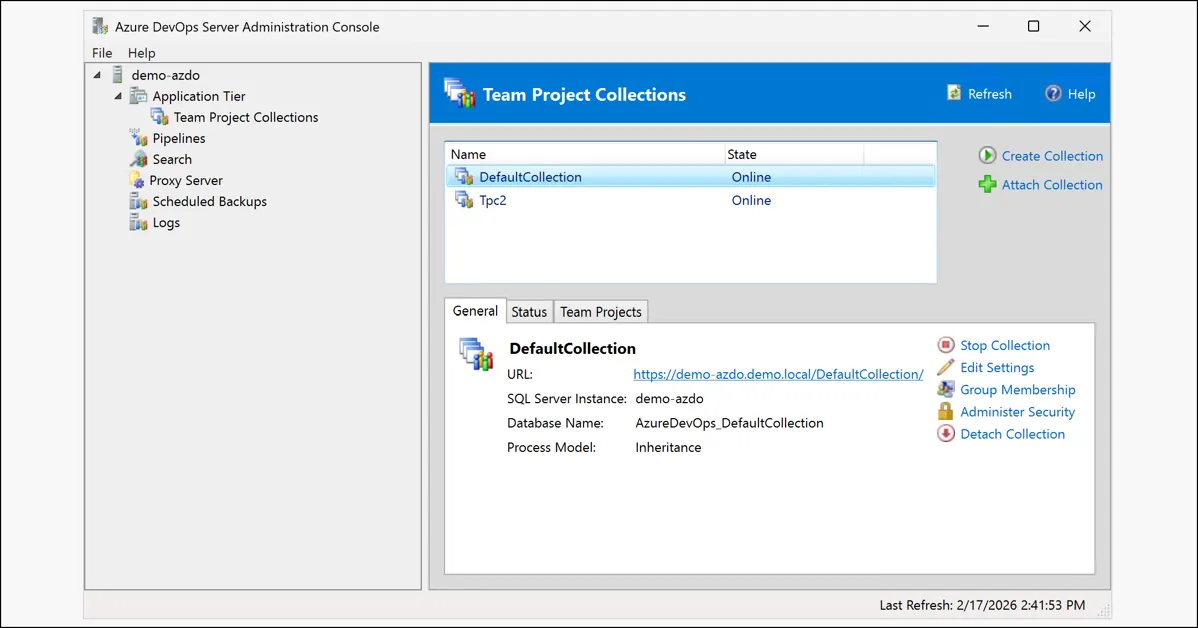
On a hunch, I created a brand new Team Project Collection from the admin console. I could access it immediately. The server was fine. Something was specifically wrong with DefaultCollection.
So I detached DefaultCollection from the admin console, then immediately reattached it pointing to the same AzureDevOps_DefaultCollection database.
It worked. Instantly. No more 401.
What Happened?
My best theory: the Azure DevOps app tier caches identity and authorization state in memory (and possibly in some internal state that persists across IIS restarts but not across collection detach/reattach operations). Something corrupted that cached state — maybe a dirty shutdown weeks ago, maybe a failed background job, maybe a Windows Update that interrupted something.
The database was fine. The identity mappings were fine. The group memberships were fine. But whatever in-memory or intermediate cached auth state the app tier was holding had gone stale, and it was making authorization decisions based on that corrupted cache rather than the actual database.
Detaching and reattaching the collection forced Azure DevOps to rebuild all of that state from scratch, and since the underlying data was correct, everything worked.
The Checklist
If you're getting 401 errors on Azure DevOps Server and you've verified that the user is in the right groups, here's the troubleshooting path:
Check the basics first:
- HTTP SPNs — Run
setspn -Q HTTP/your-server-fqdnand make sure they exist against the correct account (computer account for NetworkService, service account for domain accounts). - Edge auth policy — If you're using Chromium Edge, set
AuthServerAllowlistto cover your domain. - Loopback check — If browsing from the server itself, add the hostname to
BackConnectionHostNames. - Access levels — Make sure the user has a Basic or Stakeholder access level assigned, not just group membership.
If everything checks out and it still doesn't work:
- Create a test collection — If you can access a new collection but not the existing one, the problem is collection-specific.
- Detach and reattach — From the Azure DevOps Admin Console, detach the collection and immediately reattach it to the same database. This forces a full rebuild of the app tier's identity and security cache.
The detach/reattach is non-destructive — your data, work items, repos, and pipelines all live in the SQL database and are untouched by this operation. It's the Azure DevOps equivalent of "turn it off and on again," but at the collection level rather than the whole server.
Bonus: Don't Mess With SQL Server Certificates on AzDO Boxes
Unless you have a specific compliance requirement, leave SQL Server's certificate configuration alone on Azure DevOps Server installations. The SSL_Self_Signed_Fallback Schannel warnings in the event log are cosmetic noise. Azure DevOps handles the connection trust internally. If you do need to assign a proper certificate, use SQL Server Configuration Manager's UI rather than PowerShell — it handles the private key permissions automatically, which is a nightmare to get right from the command line due to CNG vs. CSP key type issues.
I hope this helps.
-Ben